
Whenever a new platform feature launches, the marketing noise starts almost immediately. Right now, business owners are already getting pitches promising “guaranteed ChatGPT rankings” or expensive AI visibility packages. Before spending a rupee on that, it helps to look at what OpenAI has actually released and what it does for a real business.
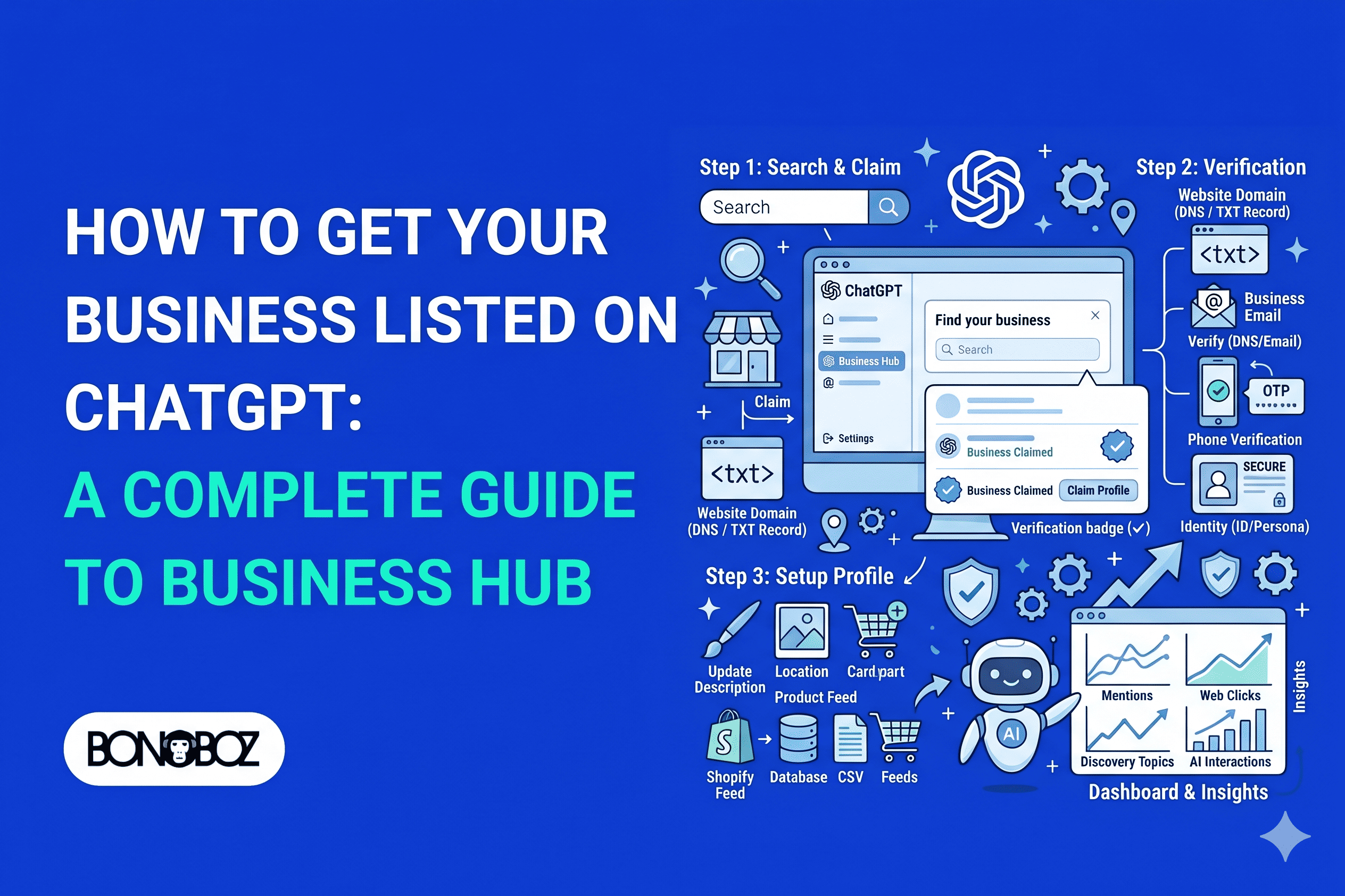
An owner or authorized representative can list an eligible business in ChatGPT by claiming its profile through Business Hub and completing verification. OpenAI must approve the claim and the required checks before anything goes live. In most cases, this includes confirming domain ownership using a DNS TXT record, a simple text entry added to your domain’s DNS settings to prove you control the website.
The practical reason to do this is control over your own facts. If people ask ChatGPT about your company, you want your address, website, product details, and return policies to be accurate rather than pulled from outdated third-party directories. At Bonoboz, we are already following this exact verification and profile setup process for all of our SEO clients as part of basic digital hygiene, not as a magic traffic lever, but because accurate business data is foundational.
Business in ChatGPT
This guide walks through how to claim a profile, verify your authority to manage it, and keep your business details updated. It also covers product feeds, Insights, and optional Business Agents, along with what actually applies to businesses operating in India.
The goal here is straightforward: make sure ChatGPT has reliable information about your business. Claiming a profile is not a shortcut to higher recommendations, and anyone telling you otherwise is overselling how the system works. Treat Business Hub as a place to maintain accurate public information, not as a promise of extra visibility or leads.
What Business Hub Does and Does Not Do
Businesses in ChatGPT entered beta on November 10, 2026, with Business Hub serving as the central dashboard to manage a profile and related company details. Once approved, it brings your business profile, product information, and aggregate Insights into one place.
A common point of confusion for business owners is assuming that claiming a profile automatically signs them up for paid ads or launches an automated chatbot. It does not. Claiming a profile, running ads, and publishing a Business Agent are three completely separate actions. You can claim and maintain your basic profile without ever spending on ads or enabling an agent.
Profile management and aggregate insights
Once your claim is approved, Business Hub lets you edit your core profile details, share inventory through a product feed, and view summary Insights. While this keeps your official details organized in one dashboard, it does not give you editorial control over what ChatGPT says in every conversation or how often your brand gets mentioned.
Insights only show grouped activity trends, never a log of what individual users asked. Similarly, uploading product data helps ChatGPT reference current pricing and availability, but neither feature turns your listing into a paid placement or guarantees that your products will be recommended over a competitor’s.
How Business Hub differs from ChatGPT Business
Many SMEs get tripped up by the naming overlap and assume they need to buy a paid subscription just to claim their listing. You do not. ChatGPT Business is a paid internal team workspace subscription, not a directory listing service. An eligible business does not need a ChatGPT Business plan, an Ads account, or a ChatGPT Enterprise contract to claim its profile.
Different people in your company may use these tools for entirely different reasons. Your operations team might use ChatGPT Business for internal work, while your marketing lead or agency manages public company information in Business Hub. Advertising remains separate under an Ads account. Keep that boundary clear before approving any new software spend: Business Hub is for managing public business details, while ChatGPT Business is an internal team tool.
Who Can Claim a Business in ChatGPT?
A small or mid-sized business can claim a profile if the person submitting the request owns the company or has clear authorization to represent it. Submitting a request does not mean immediate approval, and it does not mean every feature inside Business Hub will be available to your business type.
Because the approved user controls how the company is represented publicly, OpenAI verifies both the business and the person behind the request. Whoever submits the claim is acting on behalf of the company, so their role and authority need to be documented before you begin.
Owners and authorized representatives
A business owner can submit a claim directly. An internal employee, external agency, or consultant can also submit one, provided the business has formally authorized them to act on its behalf.
If an Digital Marketing Agency manages your website and search presence, they can handle the claim for you, but simply having an active retainer or working relationship is not enough proof for OpenAI’s review team. Keep company registration documents and written authorization handy in case the verification team asks for confirmation. Small businesses can use Business Hub without paying for a team workspace, though the person who submits the claim remains accountable for keeping the information accurate.
What claiming does not require
You do not need to run ads or hold an Enterprise agreement to claim an eligible business profile. Paying for other OpenAI products neither speeds up the claim review nor establishes ownership over a listing.
Getting approved for a profile also does not automatically unlock every feature. Business Agents, for instance, carry their own eligibility requirements around location and business model. Before you submit anything, double-check the exact business name and the email account you are logged into. If your company operates multiple distinct brands or branches, claiming one listing will not automatically cover the others.
How to Claim and Verify Your Business
To get started, sign in to Business Hub, search for your business name, and select the matching listing. From there, use only the verification method that Business Hub offers for your specific listing. Available options vary depending on the business type and how the listing was originally generated.
Follow the steps prompted inside your dashboard rather than trying to force a verification method that does not appear for your account:
- Sign in to ChatGPT and open Business Hub.
- Search for your business, select the matching listing, and confirm which account will manage it.
- Choose an offered verification method and complete the check.
- Submit your claim, then monitor your email for an approval decision or a request for supporting documents.
Phone, email, and Shopify verification
If Business Hub offers a phone check, it will send a verification code to the phone number listed for your business. Enter that code in the claim flow to confirm you have access to that line.
Email verification works the same way. Use an official domain email address tied to the business rather than a personal Gmail or Outlook ID, as personal addresses rarely establish company authority. If you run an online store on Shopify, you may see an option to connect your store directly. Log in to the right Shopify store, confirm it matches the business listing, and approve the requested permissions.
Website-domain verification
For most online businesses, domain verification is the standard route. Business Hub will ask you to add a DNS TXT record to your website’s domain settings, a small text entry placed in your domain registrar’s DNS panel to prove you control the domain.
Copy the exact record type, host, and value provided in Business Hub and paste them into the corresponding fields in your DNS settings. Even a stray space or missing character will cause the check to fail. Keep in mind that DNS updates can take anywhere from a few minutes to several hours to propagate across the internet, so do not panic if verification does not pass the second you hit save. If a listing is marked “Contact support,” it is locked and cannot be claimed through the standard self-serve flow.
Claim review and email decisions
Once submitted, OpenAI reviews the claim and sends either an approval notice or a follow-up request by email. Check your primary inbox as well as your spam folder, and respond promptly if additional documentation is requested.
Avoid submitting a duplicate claim just because a review is taking a few days. Opening a second request creates confusion and slows down tracking on the original submission. Keep your business registration details and listing URL handy whenever you reply to a verification email.
What Persona Verification Unlocks
Having your initial claim approved puts the profile inside your Business Hub dashboard, but it does not immediately let you edit public details. To unlock actual management capabilities, you must pass a second check through Persona. Persona approval is required before you can publish profile edits, connect a product feed, view Insights, or build an eligible Business Agent.
Think of this as a two-step filter: the claim confirms the business listing belongs in your account, while Persona verifies your personal identity and legal authority to represent that business.
During this step, Persona may ask for a government-issued photo ID, official business registration papers, and proof that you are authorized to act for the company. Uploading those files starts the review, but it does not grant instant access. Keep watching your email for confirmation. If the name on your registration documents does not match the listing details, the review team will likely pause and ask for clarification.
The blue verified badge only appears on your profile after Persona approves your identity check, not when you submit the claim or upload documents. More importantly, that badge simply confirms identity verification; it is not a ranking boost and does not promise more customer inquiries. Wait until Persona’s approval email arrives before expecting gated features or the badge to go live.
What You Can Change on Your Business Profile
Once both your claim and Persona verification are approved, you can edit the core details customers rely on when evaluating your company. OpenAI reviews profile changes before publishing them, so saved updates will not appear instantaneously.
You can update your website URL, business description, product or service category, and company logo. Depending on the listing type, you may also have the option to upload a cover photo.
Adding clear delivery and return policies is especially worthwhile, as it helps prevent misunderstandings when customers ask ChatGPT about how your business operates. Make sure whatever you enter in Business Hub matches the actual policies published on your website.
Keep in mind that saving an edit and seeing it live are two separate stages. Even after OpenAI approves and publishes your changes, ChatGPT does not rely exclusively on Business Hub to generate answers. It still pulls context from the broader web, meaning profile updates improve accuracy but do not give you total control over every response mentioning your brand. Always check your live listing after approval rather than assuming an edit is already active.
How Product Feeds Share Product Information
If you sell physical or digital products, a product feed lets you share structured catalog data, including live pricing and stock availability, directly with ChatGPT. Businesses can connect a Shopify store or upload a formatted CSV file. Both methods pass product information into Business Hub, though the setup process differs.
Connecting through Shopify syncs your catalog automatically once you log into the right store and approve the data permissions. If you are not on Shopify, or if you want tighter control over which SKUs get shared, you can upload a CSV file instead. Your CSV must match OpenAI’s required column headers and formatting rules; missing fields or mismatched URLs will cause items to be rejected or displayed inaccurately.
Shopify connections and CSV uploads
Using a feed makes the most sense when you manage a large catalog or update prices and stock levels frequently. However, a feed only supplies product data, it does not replace your main business profile or your store policies.
Before connecting your store or uploading a CSV file, run through a quick quality check:
- Confirm every product link points to a live, working product page.
- Verify that listed prices match your website, including current discounts or taxes where applicable.
- Check that stock availability statuses accurately reflect what is actually ready to ship.
- Ensure every required product-feed column is filled out in the exact format OpenAI specifies.
Feed accuracy and recommendation limits
Adding a product feed shares structured catalog information; it does not create or publish a Business Agent, which requires a separate setup.
Just as importantly, uploading a feed does not guarantee that ChatGPT will recommend your products when users ask for buying advice. It simply gives the system accurate product specs and pricing to reference if your items come up. Customers still have to click through to your website to buy, so broken links or outdated pricing on your actual store pages will cost you the sale regardless of how clean your feed is. Update your feed regularly whenever prices or inventory change.
What Business Hub Insights Measure
If you have ever felt burned by agency reports stuffed with vague impressions and inflated charts, it is worth understanding exactly what Business Hub Insights measure, and what they leave out. Insights summarize aggregate activity over a rolling 28-day window. You see grouped numbers for mentions, website clicks, and broad discovery topics, never individual user prompts or chat transcripts.
How online and local mentions are counted
OpenAI counts mentions differently depending on whether you operate as an online business or a local physical location, so comparing the two numbers directly can be misleading.
For an online business, a mention is only counted when ChatGPT explicitly references your website. If ChatGPT mentions your brand name in text without linking or citing your site, it does not count as an online mention in Insights. For a local business, a mention is counted whenever ChatGPT displays a result card for that physical location, even if the user never clicks on it. Keep that distinction in mind when reviewing monthly numbers so you do not mistake passive local views for active website visits.
Website clicks and discovery topics
Website clicks track how many times users clicked through from ChatGPT to your site. That tells you someone visited from that channel, nothing more. It does not tell you whether they filled out an inquiry form, requested a quote, or completed a purchase, you will still need your own website analytics and CRM data to track actual leads and revenue.
Discovery topics show broad themes from conversations where your business or category appeared, such as users comparing pricing or asking about product specifications. Treat these topics as directional context rather than a list of exact search queries or proof that someone is ready to buy.
Privacy, reporting thresholds, and blank metrics
To protect user privacy, businesses never see individual prompts or transcripts from customer chats, including interactions with a Business Agent. Everything is aggregated.
If you open Insights and see a blank space instead of a number, do not automatically assume nobody saw your listing. Metrics can appear blank because activity has not crossed OpenAI’s minimum privacy threshold, because data is still processing, or because reporting is unavailable for that specific metric. Always read blank fields alongside your reporting status and the 28-day window before drawing conclusions.
What Business Agents Can and Cannot Do
A Business Agent is an optional customer-facing chat experience built for eligible U.S. ecommerce and online service businesses. To qualify, your company must operate an active website and meet the industry rules outlined in OpenAI’s Business Agents Policy. Having an approved Business Hub profile does not automatically make you eligible to create an agent.
Which businesses may create an agent
Currently, Business Agents are limited to qualifying U.S.-based ecommerce brands and online service providers that meet OpenAI’s category guidelines. A local brick-and-mortar business, or a business operating outside eligible regions and categories, may still be able to claim a profile while remaining ineligible for an agent. Check the eligibility rules inside Business Hub before investing time into drafting agent instructions.
What customers can do in an agent chat
When enabled, a Business Agent uses the product, service, and policy information you provide to answer customer questions and direct them to relevant pages on your site. The chat interface is clearly labeled as a business-run agent so users do not confuse it with ChatGPT’s independent answers.
However, a Business Agent is strictly an informational assistant, it cannot process payments, book appointments, or look up existing customer orders. When a customer is ready to buy, schedule a call, or initiate a return, the agent sends them to your website or standard support channels to complete the action. Knowing this upfront prevents unrealistic expectations: the agent handles pre-sale questions, while your own website systems close the transaction.
How to Review and Publish a Business Agent
If your business qualifies and you decide to build a Business Agent, start by auditing the product, service, and policy data it will pull from. Creating an agent requires both an approved business claim and completed Persona verification. Even after you build a draft, publishing it remains completely optional.
Connecting a Shopify store may automatically generate a draft agent in your dashboard, while other eligible businesses can create one manually when the option is available. A draft agent is strictly private, customers cannot see or interact with it until you explicitly publish it.
Check the information and instructions
Before testing your agent, check that every price, product name, service scope, and return policy you fed into it matches your live website. If you feed the agent incomplete or outdated details, it will pass inaccurate answers directly to potential buyers.
Review the custom instructions guiding how the agent responds. Keep those instructions grounded in verifiable facts about your business, and forbid it from making claims or guarantees your team cannot back up. Test the agent with realistic, tricky customer questions, such as whether discounted items qualify for returns, and verify the response against your actual policy. If it gets a detail wrong, fix the underlying source data or instructions and test again.
Preview before publishing
Use the preview tool to test common customer questions before making anything public. Do not publish a draft simply because it generates smooth, confident-sounding replies. An agent can sound completely assured while omitting an important condition, such as shipping exclusions or minimum order quantities.
Because publishing is a separate step, there is no rush to go live. Leave the agent in draft mode until it consistently gives accurate, complete answers to everyday buyer questions.
What India-Based Businesses Should Check
If you run a business in India, do not assume every feature mentioned in global announcements applies to your company right away. Even though ChatGPT is widely accessible across India, Business Hub eligibility depends heavily on your business model, physical location, and the verification routes supported for your account.
Before spending time gathering registration documents or editing DNS records, check what options Business Hub actually displays when you search for your business.
Online-business listing eligibility
Eligible India-based online businesses, such as SaaS companies, ecommerce brands, and digital service providers, may be able to claim or add a listing depending on what Business Hub supports for their category. However, two online companies in different sectors may see different verification options or eligibility rules. Treat the options shown inside your specific Business Hub flow as the definitive guide rather than relying on general country-level assumptions.
Local stores and restaurants
This is where Indian SMEs need to be especially careful with their expectations: currently, local brick-and-mortar stores and restaurants can only claim existing U.S. listings. ChatGPT’s general availability in India does not mean a local cafe, clinic, or retail shop in Ahmedabad, Mumbai, or Bengaluru can add a new local listing right now.
If you operate a local Indian business, check Business Hub to see if an existing listing already appears for your brand, but do not try to claim an unrelated listing or force your business into a U.S. location category just to get listed. Focus your local marketing budget on channels that actually serve Indian local search today until OpenAI expands local listing support.
How to Manage Teammates, Agencies, and Locations
One of the fastest ways SMEs lose control of their digital assets is by handing over master login credentials to a freelancer or agency. Business Hub avoids this problem by letting the claiming admin invite teammates or external agencies using their own individual ChatGPT accounts.
Granting teammate and agency access
If you are the admin who claimed the business, manage permissions directly inside Business Hub’s access settings. When you invite an agency or a marketing team member, they accept the invitation through their own ChatGPT account.
Never forward a personal claim verification link to someone else as a shortcut to give them access, and never share your primary owner login. Using role-based invitations ensures that if you ever change agencies or a team member moves on, you can revoke their access in seconds without losing ownership of your company’s profile. Only invite people who have an active, defined responsibility for maintaining your business information.
Access for workspace-claimed businesses
If your business profile was originally claimed under a corporate ChatGPT workspace, anyone you invite may also need to be a member of that same workspace before they can accept the invitation. If an agency partner or colleague tells you their invite link is not working, check which account or workspace holds the primary claim first. Keeping access tied to individual accounts protects your ownership while letting your team do their job.
How to Resolve Claim and Access Problems
When a claim or Persona identity check gets stuck in pending status, the best move is usually patience. Review timelines fluctuate, and waiting a few days does not mean your request was rejected.
Keep your company name, website URL, and registration records consistent across your Business Hub account and any documents you upload. If you hit a snag, use the specific resolution path tied to your status rather than submitting duplicate claims:
- Wait for an email decision or document request before taking further action.
- If a Persona identity check fails or expires, follow the retry instructions in your email and make sure your ID and business documents match the listing details.
- Fix any discrepancies between your official business records and the details entered in your claim.
- Use the “Contact support” option if a listing is locked or if an approved admin is blocked by a technical access issue.
- Use “Dispute ownership” if someone else has already claimed your business profile and you have legal authority to represent the company.
Pending or failed verification
OpenAI communicates claim updates and document requests strictly through the email address used to submit the claim. Keep checking that inbox while a review is active. If a Persona check times out or fails, use the retry option provided in the follow-up email rather than starting a brand-new business claim, which will not solve an identity verification mismatch.
Locked, disputed, and published profiles
If a listing displays a “Contact support” label, it is locked and requires manual review from OpenAI’s team. If an unauthorized person or former vendor has already claimed your profile, submit a “Dispute ownership” request along with clear documentation proving your relationship to the business, never try to access or recover the profile through someone else’s credentials.
One critical warning before you hit publish: only unpublished draft profiles can be deleted. Once a Business Hub profile is published, OpenAI Support cannot delete, unpublish, or hide it. Review every detail carefully before making your profile live, and remember to mask any sensitive personal or financial information on screenshots before sending them to Support.
Conclusion
Claiming your profile in Business Hub is a sensible piece of digital housekeeping. It lets you verify ownership, keep your core company details and policies accurate, and access aggregate insights once approved. What it will not do is replace solid SEO, fix a weak website offer, or guarantee that ChatGPT recommends your business over competitors.
At Bonoboz, we treat Business Hub the same way we treat every other channel for our SEO clients: get the fundamentals right, keep the data honest, and measure real business outcomes rather than vanity metrics. Sign in to ChatGPT, open Business Hub, and check whether your business listing and verification options are available today, and if they are, claim your profile properly so your facts are accurate from day one.
FAQs
1. Can a parent company manage all its brands and locations from one Business Hub profile?
No. Business Hub does not support centralized parent-company management across multiple brands or branches. Each distinct brand or location has to be claimed and managed individually. Claiming your main corporate brand will not automatically claim your sub-brands or physical outlets, so check each listing separately.
2. Can an agency use its own ChatGPT account to manage a business profile?
Yes. Once the business owner or primary admin claims the profile, they can invite an agency team member through Business Hub’s access settings. The agency accepts using their own ChatGPT account, meaning the business owner never has to share personal login passwords. If the listing was claimed inside a corporate ChatGPT workspace, the agency user may also need workspace membership to accept the invite.
3. Does a Business Agent require a Shopify store?
No. While connecting a Shopify store can automatically generate a draft agent for eligible businesses, any qualifying U.S. ecommerce or online service business can create a Business Agent inside Business Hub without Shopify. Every agent starts as a private draft, giving you time to review the source data and test responses before deciding whether to publish it.
4. Can I delete or hide a published Business Hub profile?
No. Once a Business Hub profile is published, OpenAI Support cannot delete, unpublish, or hide it. Only unpublished draft profiles can be deleted. You can still update approved profile details later through Business Hub, so double-check all information carefully before publishing for the first time.
5. Can a customer complete a purchase or booking in a Business Agent chat?
No. A Business Agent cannot process transactions, book appointments, or check order statuses. It answers questions about your products, services, and policies and links customers back to your website, where they complete the purchase or booking through your existing checkout system.
6. Does a blank Insights metric mean there were no mentions or clicks?
Not necessarily. Because Insights summarize rolling 28-day activity under strict privacy thresholds, a blank field can mean activity simply has not crossed the minimum reporting threshold yet, data collection is still processing, or reporting is unavailable for that metric. Always check the reporting status in Business Hub before treating a blank space as zero activity.
Related Articles:
- AI Rank Tracking Tools Compared: Features, Benefits, and Practical Choices for Growing Brands
- Google AI Overviews Explained: What They Are and How They Work
- The Evolving Digital Marketing Era: Exploring its Role with Artificial Intelligence

Rahul Mamtani Rahul Mamtani on LinkedIn
Rahul is an SEO Expert with over 6 years of experience in search engine optimization, helping businesses improve their online visibility, organic traffic, and search rankings. His expertise includes technical SEO, keyword research, on-page and off-page SEO, local SEO, and content optimization. He focuses on data-driven strategies and practical SEO solutions that help websites attract relevant audiences and achieve sustainable organic growth.